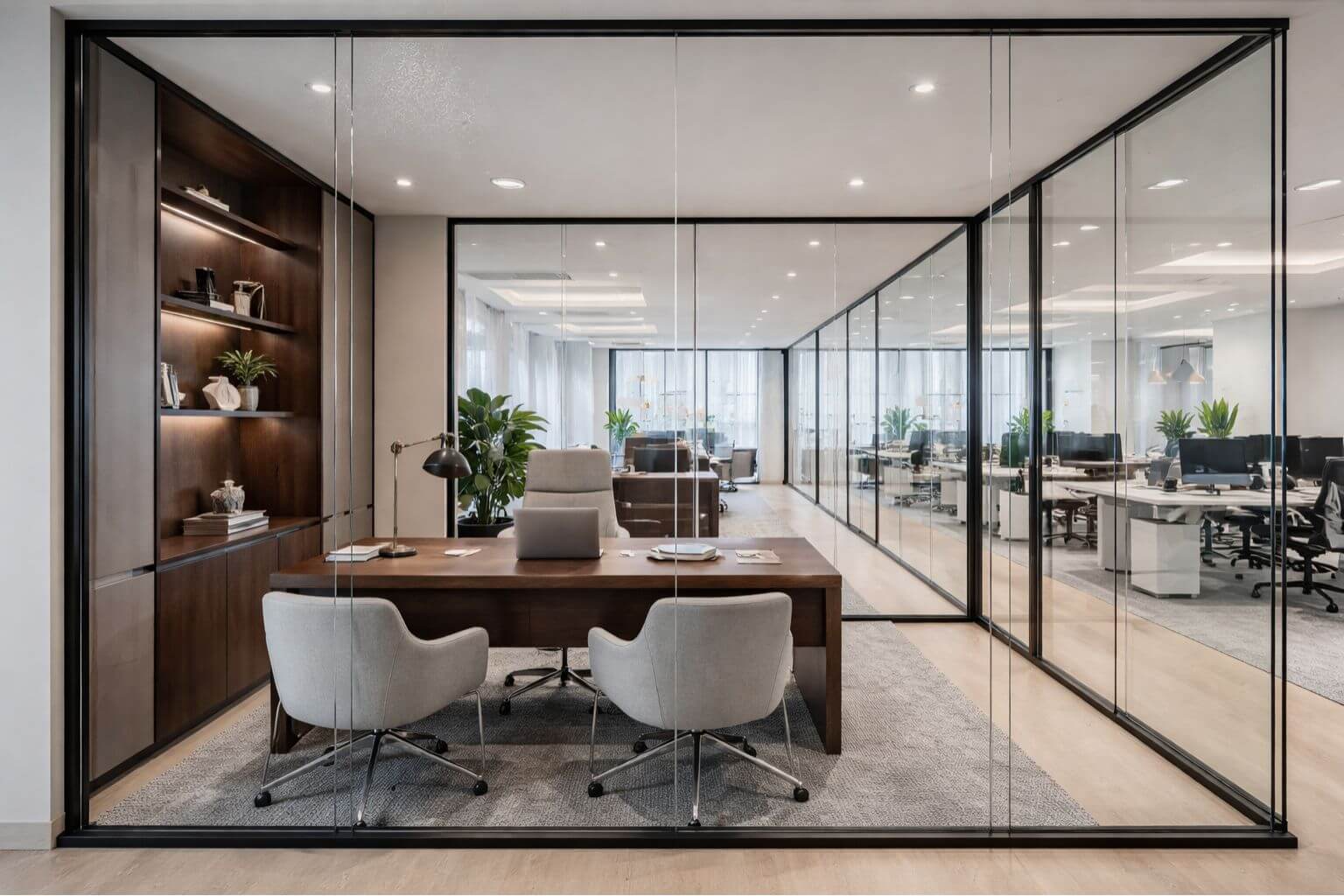
An ergonomic assessment is a structured evaluation of how well a workspace supports the physical needs of the people using it. Its purpose is simple but vital: to ensure that furniture, technology, and working practices fit the worker, not the other way around. When workspaces are designed around human comfort and capability, the result is fewer injuries, greater productivity, and happier teams.
In today’s hybrid world of office and home working, ergonomics has become a key component of modern business strategy. Beyond improving well-being, it helps companies meet legal health and safety obligations under UK regulations.
This article provides a comprehensive ergonomic assessment checklist that employers and employees can follow, including:
- The Legal Side of Etgonomics
- Preparing for an Ergonomic Assessment
- Your Workstation Set-Up Checklist
- Posture and Work Habits Checklist for Employees
- Environmental Factors Affecting Office Ergonomics
- Your Technology and Equipment Checklist
- Training and Employee Engagement
- Risk Factors and Advanced Assessments
- Post-Assessment Actions and Review
- Erogomics Matters
You can also access our downloadable Ergonomic Assessment Documents for use during your own evaluations, perfect for audits, HR checklists, and safety reviews.
The Legal Side of Ergonomics
Under UK law, employers are legally responsible for protecting the health, safety, and welfare of their employees. This includes making sure workstations meet ergonomic standards. The main legislation governing this area includes:
- Health and Safety at Work etc. Act 1974: Employers must ensure, so far as is reasonably practicable, the health and safety of employees.
- Management of Health and Safety at Work Regulations 1999: Requires risk assessments of all workplace hazards, including ergonomic risks.
- Display Screen Equipment (DSE) Regulations 1992: Mandates regular workstation assessments for employees who use screens for continuous or near-continuous periods.
Ignoring ergonomics can have serious consequences. Poor workstation setups lead to musculoskeletal disorders (MSDs), repetitive strain injuries, and long-term absence. These health issues often result in compensation claims or enforcement actions by the Health and Safety Executive (HSE).
Beyond compliance, neglecting ergonomic safety undermines productivity and morale. Discomfort and fatigue reduce focus, increase errors, and drive presenteeism, as employees work through pain rather than performing efficiently.
A proactive ergonomic assessment should therefore form part of your regular health and safety audits, providing both legal protection and measurable improvements in staff well-being and engagement.
Preparing for an Ergonomic Assessment
An ergonomic assessment should be conducted by a trained assessor, Health and Safety Officer, or competent supervisor familiar with workstation standards. For smaller teams or remote settings, self-assessment checklists can also be used under professional guidance.
Assessments should be carried out at key points, including:
- When a new employee joins or changes roles.
- Following office reconfigurations or equipment upgrades.
- After employee complaints about discomfort or strain.
- On a regular annual basis, to maintain compliance and track improvements.
Before the assessment, ensure employees understand the process and have an opportunity to raise concerns. Taking photographs or sketches of workstations can help document issues.
All findings should be recorded and filed, including corrective actions, timelines, and follow-up results. This documentation demonstrates compliance during audits and forms a valuable reference for continuous improvement.
Your Workstation Set-Up Checklist
A properly adjusted workstation minimises strain and improves comfort. Each element plays a critical role:
Desk and Work Surface
- The desk height should allow forearms to rest comfortably at a 90° angle when typing.
- Maintain clear leg space beneath the desk; remove bags, boxes, and cables.
- Avoid clutter, keep only frequently used items within easy reach.
- Ensure there are no trip hazards from loose wires or uneven flooring.
Chair
- Use a fully adjustable chair that supports the lower back (lumbar region).
- Seat height should allow feet to rest flat on the floor; if not, use a footrest.
- Adjust the backrest angle to promote a natural upright posture, avoid slouching.
- Ensure seat depth allows two to three finger widths between the back of the knees and chair edge.
- Armrests, if present, should not obstruct movement or prevent close desk access.
Monitor(s)
- The top of the screen should be at or just below eye level.
- Keep monitors roughly an arm’s length away from the user.
- Centre the monitor directly in front of the user to avoid neck twisting.
- Reduce glare by adjusting the screen tilt or repositioning it relative to windows and lighting.
- For dual monitors, position the primary screen centrally, with the secondary angled toward the user.
Keyboard and Mouse
- Keep wrists in a neutral position, not bent upwards or sideways.
- Align the keyboard and mouse at the same height and distance.
- The B key should be roughly in line with the user’s belly button for central alignment.
- Avoid resting wrists on hard edges; use a padded wrist support if necessary.
- Keep the mouse close to the keyboard and use a light grip.
Accessories
- Provide footrests, document holders, and laptop stands as needed.
- For laptop users, always use an external keyboard and mouse for prolonged work.
- Use monitor arms or risers to achieve the correct screen height.
Posture and Work Habits Checklist for Employees
A well-designed workstation only works when combined with healthy posture habits.
Neutral Posture
- Keep wrists straight and shoulders relaxed.
- Elbows should rest naturally by the sides, bent around 90 degrees.
- Hips and knees should both be at approximately 90 degrees.
- Head balanced over shoulders, avoid craning forward.
Movement and Breaks
- Take micro-breaks every 30-45 minutes to stretch or stand.
- Alternate between sitting and standing if possible.
- Perform simple stretches: wrist rolls, shoulder shrugs, and neck tilts.
- Avoid repetitive strain by rotating tasks, typing, reading, or phone calls.
Risk Awareness
- Identify warning signs: tingling fingers, neck pain, or shoulder stiffness.
- Avoid leaning or twisting to reach items; reposition equipment instead.
- Keep hydration and general fitness in mind; both support healthy posture.
Encouraging active posture management is essential; even the best ergonomic setup cannot compensate for long hours in static positions.
Environmental Factors Affecting Office Ergonomics
The surrounding environment plays a major role in comfort and productivity. An ergonomic assessment should evaluate the entire space, not just the desk.
Lighting
- Ensure natural light where possible, supplemented by task lighting.
- Avoid glare on screens, use blinds or adjust monitor placement.
- Check brightness levels; too dim or too bright lighting strains the eyes.
Ventilation and Temperature
- Maintain a comfortable ambient temperature (generally 20-24°C).
- Provide adequate airflow without direct draughts.
- For hybrid offices, consider air quality sensors or CO₂ monitoring to ensure a healthy environment.
Noise Control
- Reduce distractions with acoustic panels, screens, or quiet zones.
- Offer noise-cancelling headsets where appropriate.
Space and Safety
- Maintain ample legroom and safe cabling practices.
- Keep aisles clear and storage organised to avoid tripping hazards.
- For sit/stand desks, ensure stable positioning and safe cable management.
Environmental comfort underpins long-term ergonomic success; poor lighting or ventilation can undo even the best workstation setup.
Your Technology and Equipment Checklist
Modern offices rely on technology that must be ergonomically integrated. Poorly placed devices quickly cause strain.
Laptops and Monitors
- Laptops should only be used for short-term without docking stations.
- For extended use, attach an external monitor, keyboard, and mouse.
- Position dual screens at equal height and distance, angled slightly inward.
Phones and Headsets
- Avoid cradling the phone between your ear and your shoulder; use a headset.
- Keep phones within easy reach to prevent overreaching.
- For frequent calls, consider softphone software integrated with headsets.
Smart Office Tools
- Install break reminder apps or software that encourages stretching.
- Use adjustable lighting systems to reduce glare and eye fatigue.
- Incorporate sensor-based sit/stand desks that track user habits and promote movement.
A technology-focused checklist ensures that every digital tool supports, rather than hinders, human performance.
Training and Employee Engagement
No ergonomic setup remains effective without awareness and engagement. Employees must understand how to maintain comfort and recognise early signs of strain.
Training Essentials
- Provide ergonomic induction training for all new staff.
- Teach employees how to adjust their own chairs and monitors.
- Run refresher sessions annually or after major office changes.
Promoting Awareness
- Display posture reminder posters and digital screensavers.
- Encourage micro-breaks and informal stretching sessions.
- Integrate ergonomics into wellbeing programmes and HR communications.
Building a Safety Culture
- Create a reporting culture where discomfort is raised early and addressed quickly.
- Reward proactive safety behaviour; even small ergonomic improvements can have lasting effects.
- Involve employees in selecting new equipment; engagement improves adherence.
Training transforms compliance into culture. A workforce educated about ergonomics contributes actively to safety, comfort, and productivity.
Risk Factors and Advanced Assessments
Certain tasks or environments present higher ergonomic risks and require advanced assessment techniques.
High-Risk Roles
- Repetitive work such as data entry or assembly line tasks.
- Manual handling or lifting of heavy materials.
- Use of high-vibration tools or prolonged driving.
- Hybrid or remote work setups where the equipment varies in quality.
Risk Rating Frameworks
- Assess each workstation using a Low, Medium and High scale.
- Consider factors such as:
- Frequency and duration of exposure.
- Severity of discomfort or reported pain.
- Level of control (whether the risk can be easily mitigated).
Frameworks like HSE’s MAC Tool (Manual Handling Assessment Charts) or OSHA/TDI ergonomic scoring provide structured guidance.
Escalation
- If employees report persistent pain or symptoms despite adjustments, refer them to Occupational Health professionals.
- Engage external ergonomists for complex environments such as laboratories or production lines.
Advanced ergonomic assessments help identify patterns and prevent injuries before they escalate, ensuring a proactive rather than reactive approach.
Post-Assessment Actions and Review
Completing the assessment is only the first step. The follow-up process ensures real, lasting improvements.
Documentation
- Record every identified issue, corrective action, and completion date.
- Keep copies of photos, risk scores, and employee feedback.
Implementation
- Prioritise high-risk issues immediately (e.g. poorly adjusted chairs or missing supports).
- Schedule equipment upgrades or workspace redesigns as needed.
Review Cycle
- Reassess workstations annually, after team reorganisations, or following reported discomfort.
- Incorporate employee feedback to track whether changes have improved comfort and performance.
A consistent review cycle turns your ergonomic checklist into a living document, ensuring compliance and continual improvement.
Ergonomics Matters
Ergonomic assessments are not just about furniture; they’re about people. By taking a proactive approach, businesses can prevent injuries, comply with regulations, and foster healthier, happier teams.
When implemented correctly, ergonomic practices enhance focus, reduce absenteeism, and signal to employees that their well-being truly matters.
Treat your ergonomic checklist as an ongoing process, not a one-time exercise. Revisit it regularly, update it as technology evolves, and keep communication open between staff and management.
To support your journey, download our Ergonomic Assessment Templates and Checklists, practical tools to guide every stage of your review. If you need advice on how to improve your office ergonomics with a complete fit-out or simply some improved office furniture, get in touch with our team today.